The Address widget is a combination widget that provides pre-formatted address fields that simplify gathering address information and presenting region appropriate fields.
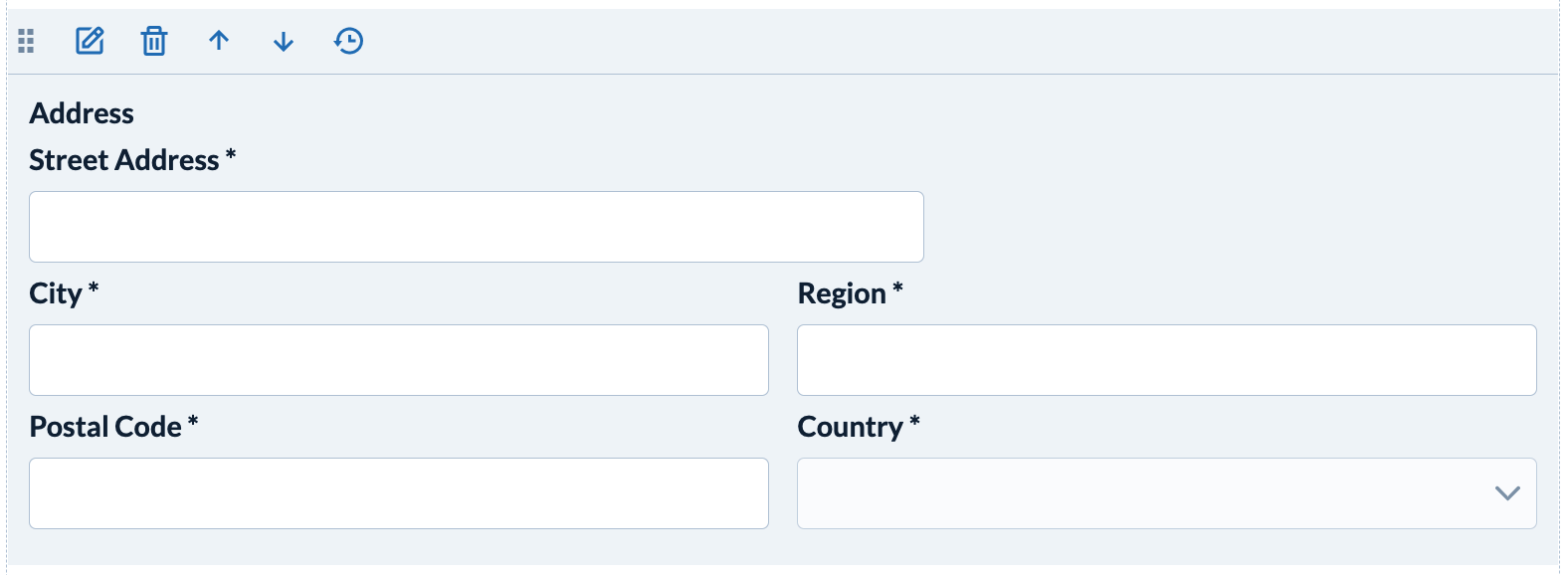
The address fields include:
- Street Address
- City
- Region
- Country
- Postal Code
In the left menu, the Address widget can be identified by this graphic:
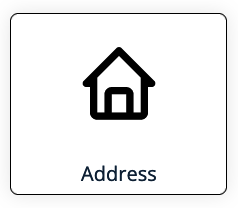
To place a Address widget on a form drag the icon onto the form using your mouse (or finger if using a mobile device)
Once the Address widget has been placed on a form it appears as below in the form editor:
Click the edit icon (  ) to configure the widget in the left configuration panel.
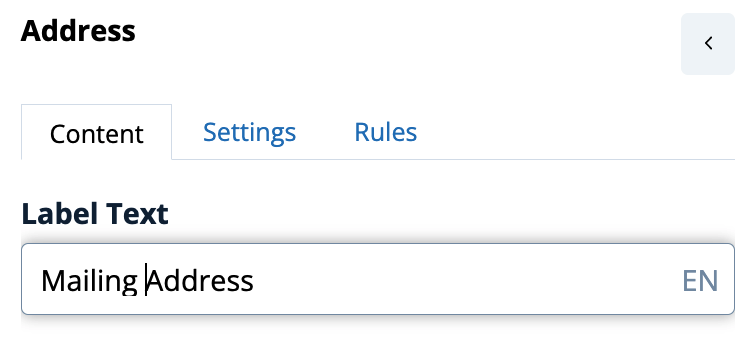
Changing the Address Label
The 'Content' tab in this example shows the label updated to read 'Mailing Address'
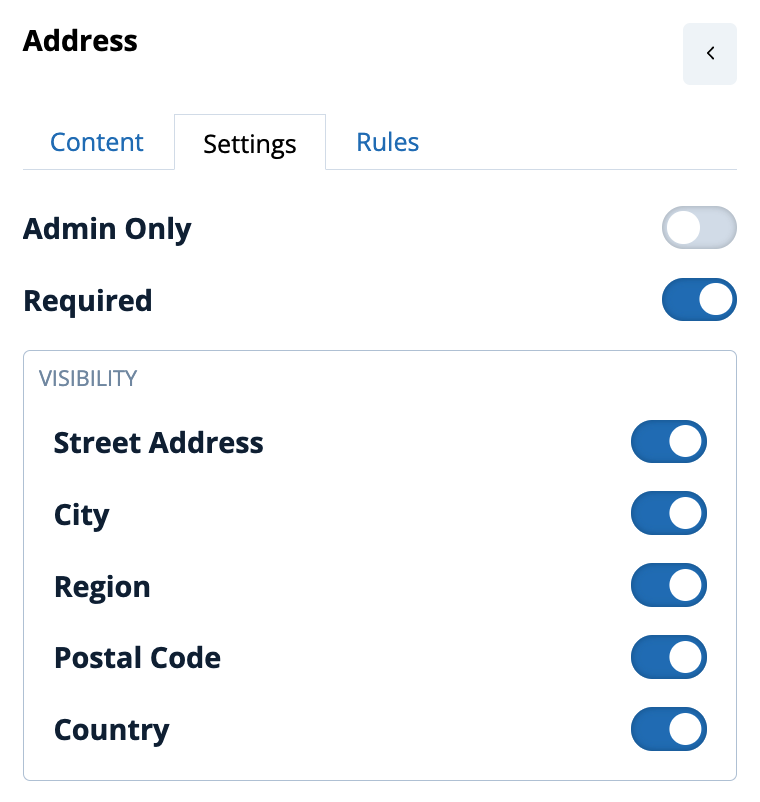
Configure the Display of Address Fields
On the Settings tab toggle the Address fields that you want to display.
A Note About Regions and Postal Codes
If Country is present on the Address the following behaviour is automated:
- If enabled on the Address, the Region will automatically display a drop down menu of US states or Canadian provinces when the user selects the respective country. The label will automatically change to "State" or "Province". For all other countries the Region remains an input field labelled "Region"
- If enabled on the Address, the Postal Code will be labelled "Zip" for United States and POstal Code for all other countries.
Other Information
- You can place multiple Address Widgets on a Registration form. Use the label as described above to differentiate the addresses.
- You can attach Rules to Address Widgets. For example, you might ask every attendee their "Home Address" but only ask certain Attendee Types their "Work Address"
Comments
0 comments
Article is closed for comments.