If when charging fees you also collect taxes from participants you will need to define tax rates for your event.
Defining Tax Rates
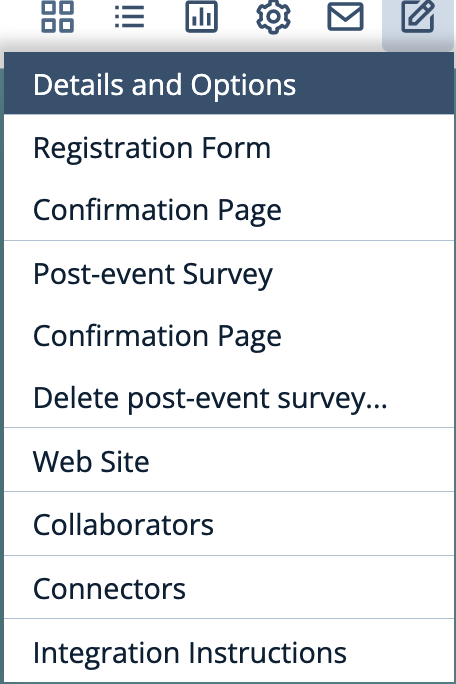
- Navigate to the Details and Options page under the Setup menu
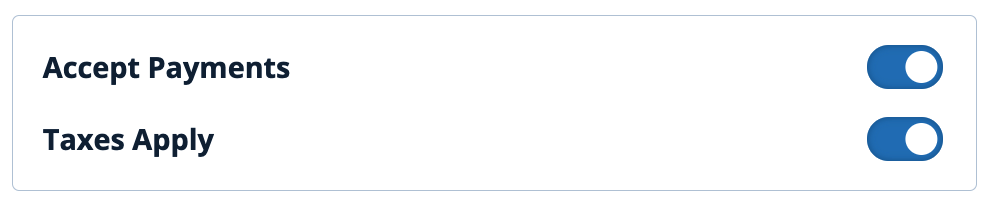
- Ensure the "Taxes Apply" toggle is switched on. Note that if your event does not Accept Payments you will not be able to switch on taxes:
- Scroll down the page to the Tax Rates section. Here you will define the tax rates applicable to your event.
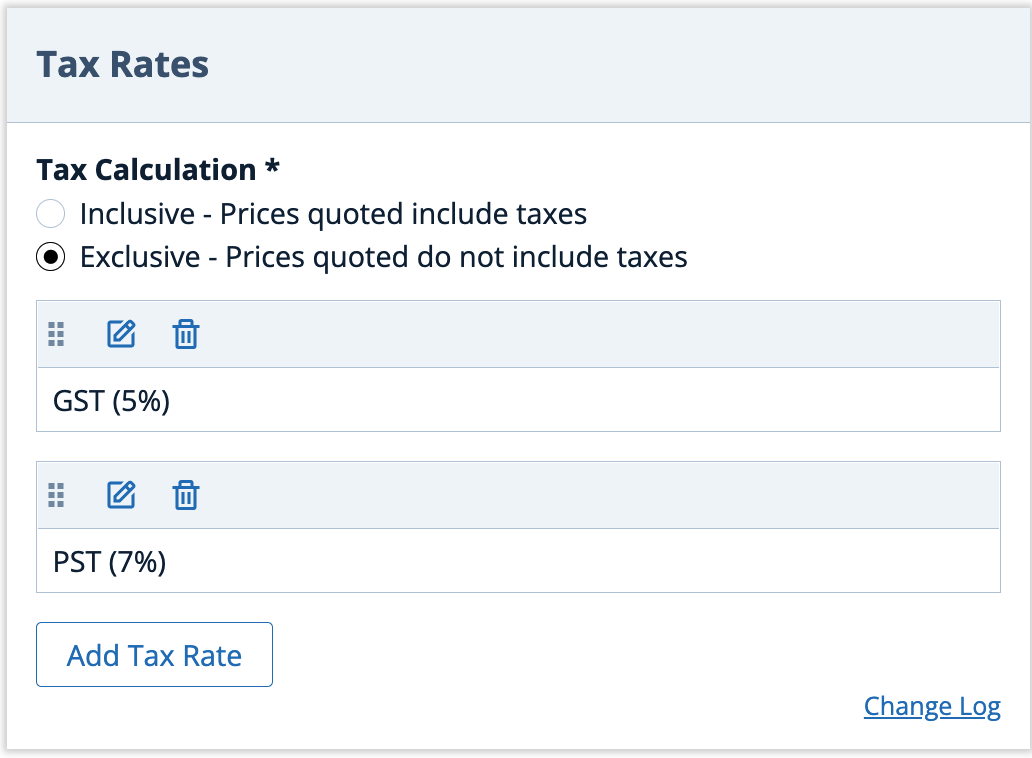
- Define the Tax Calculation method. There are two categories of tax calculations:
Inclusive - the taxes are calculated as a portion of the fees specified. For example, if the fee is specified as USD 100 and the tax is 5%, the total charged will be USD 100 comprising USD 95.24 plus USD 4.76 taxes
Exclusive - the taxes are calculated and added to the fees specified. For example, If the fee is specified as USD 100 and the tax is 5%, the total charged amount will be USD 105 comprising USD 100 plus USD 5.00 taxes.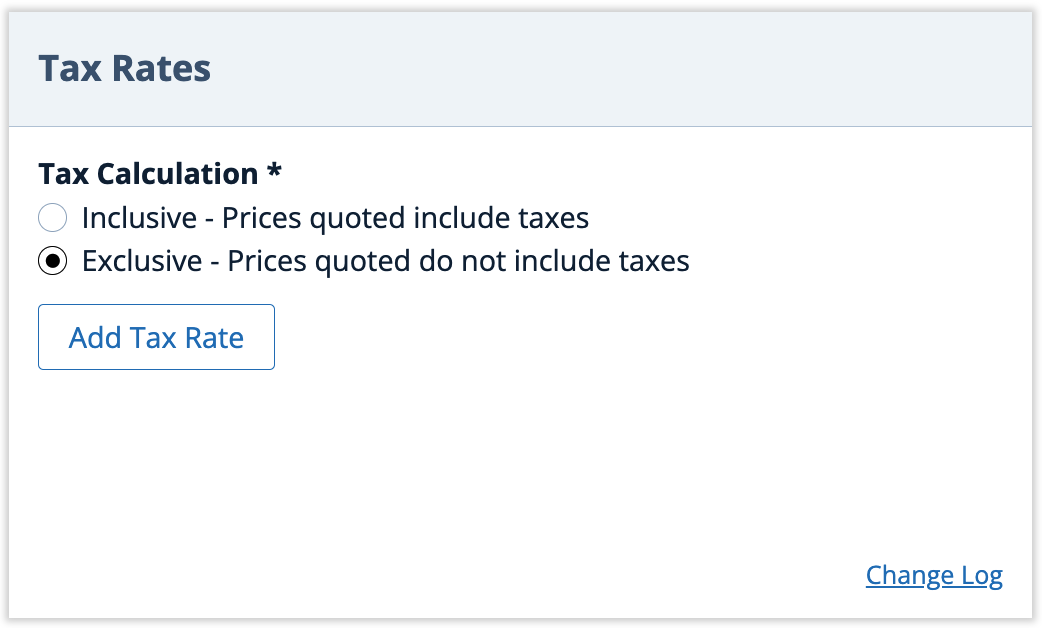
- Click Add Tax Rate to define one or more tax regimes:
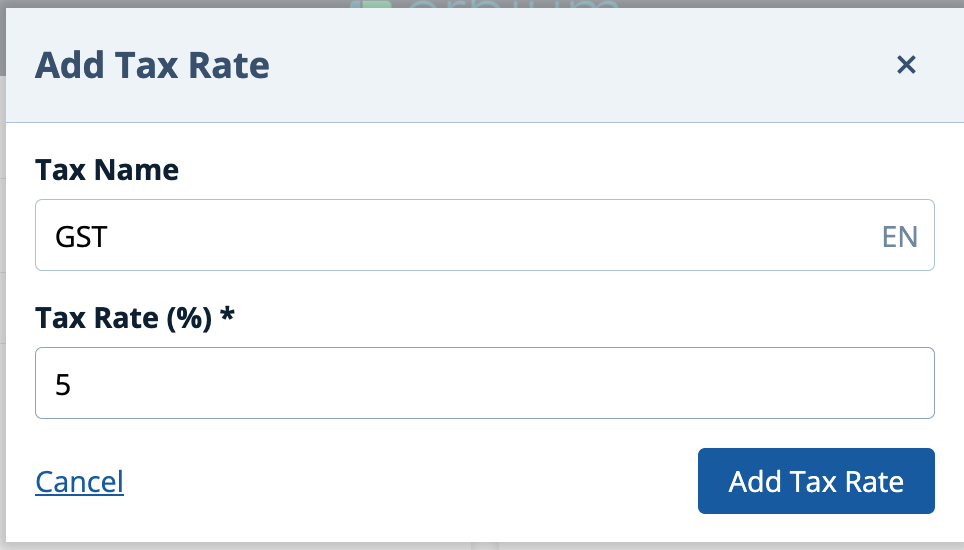
Tax Name - the name specified her will be displayed on statements. For example, a goods and service tax might be labelled "GST"
Tax Rate - the percentage amount of the tax regime. For example, 5.00 - Specify all the Tax Rates that may apply to the event. Note: later you can switch off taxes at the individual item level. For example:
Comments
0 comments
Article is closed for comments.