Often "Discount Codes" are provided to registrants to trigger preferential discounted pricing. The Erbium platform can be configured to recognize Discount Codes and discount the fees accordingly.
The following steps illustrate howe to create a Discount Code Based Discount discount.
- First configure the event with "Base Fees" for all selectable items. Base fees are the non-discounted fees that apply to items selected during registration.
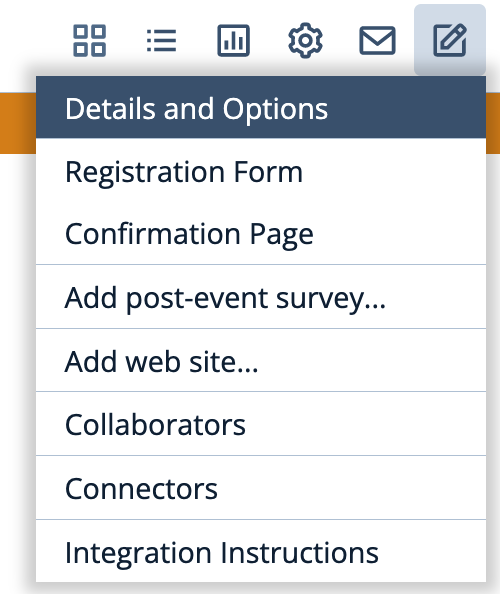
- Navigate to the "Details and Options" page of the "Setup" menu
- In the "Discount Code" panel click "Add Discount Code"
- Create a Discount Code of your choosing, in this example we will use "ABC123", and click "Add Discount Code". If you want to limit the number of times the code can be used you can optionally specify a capacity limit.
- Once the Discount Code(s) are created you can now specify the Discounts that will b e triggered by registrants using those codes. In the "Discounts" section click "Add Discount":
- Configure the code based discount:
- Define a name for the discount, for example, "AC Discount"
- Add a Rule based upon "Discount Code":
- Define the criteria for the Discount Code that will trigger the discount:
In this example, any registrations that include a Discount Code that begins with ABC will be eligible for the discount. This assumes any capacity limit for the code has not been reached. - Define the Discount Fee for each item. This is the fee that will be charged instead of the Base Fee when the Discount Code is used.
- Save the discount by clicking "Add Discount"
- You will see both the "Discount Code" and the "Discount" in your "Details and Options" page:
- Important Note:
In this example the Discount was configured with a rule that indicated any Discount Code that "Starts With" ABC. For this reason, assuming the discount is the same of reach Discount Code, you can create multiple Discount Codes beginning with ABC without having to create a separate Discounts.
- Define a name for the discount, for example, "AC Discount"
Comments
0 comments
Please sign in to leave a comment.