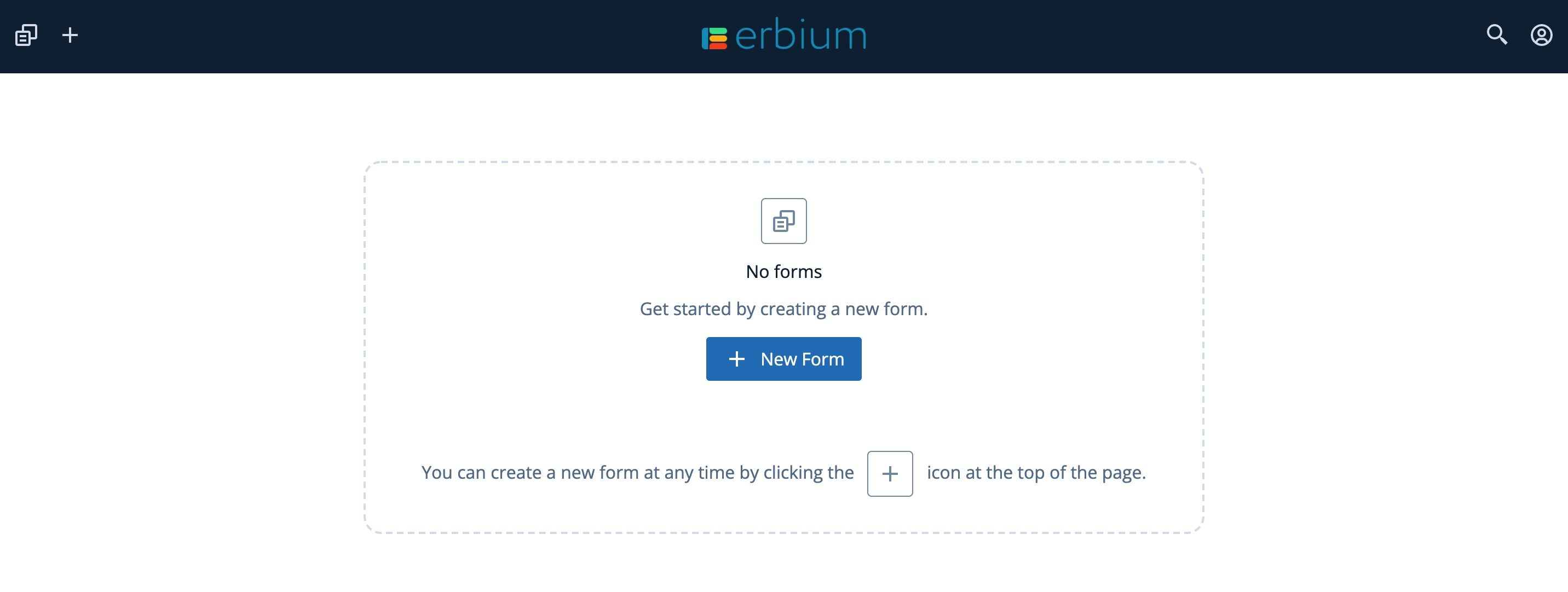
When you first create an account on the ERBIUM platform you will have no forms and the screen will prompt you to create your first form:
Create a form ...
To begin, click on the "+ New Form" button or click the "+" in the menu bar. You will be prompted to:
- Provide a name for the form
- The start date and end date, for example
Start Date End Date Event Registration The first day of the event The last day of the event Survey The date the survey opens The date the survey closes - Identify the primary team member that "owns" the event:
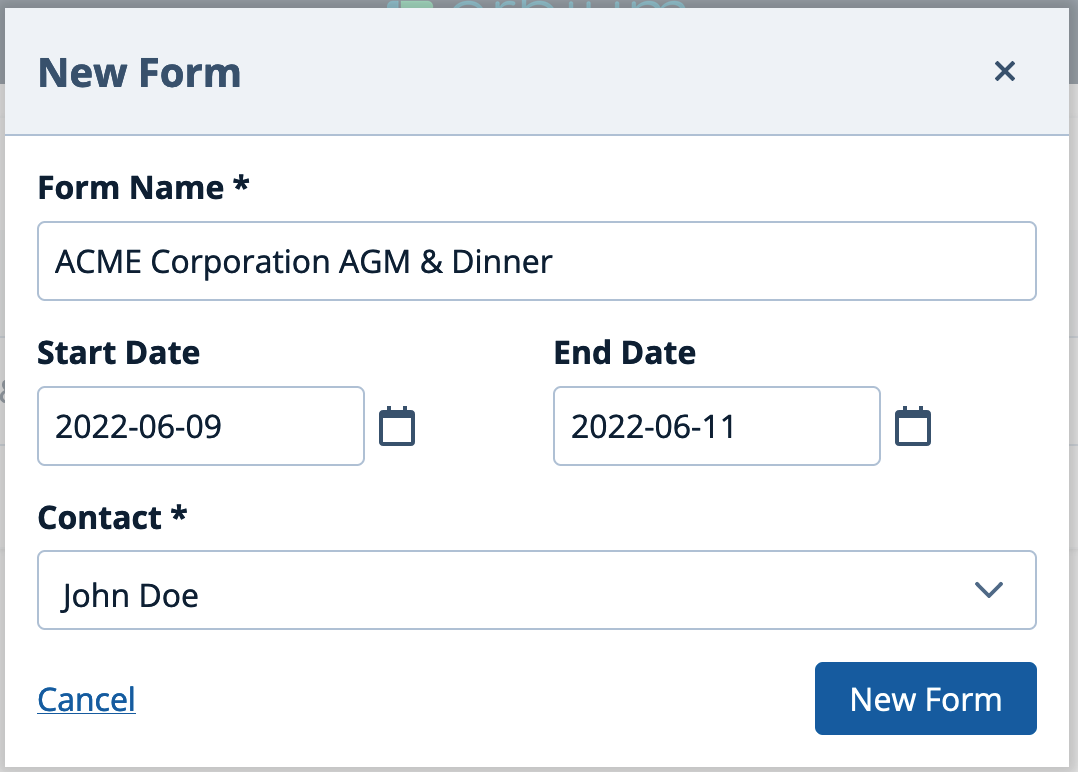
Don't worry, you can change these details later under the Details and Options settings.
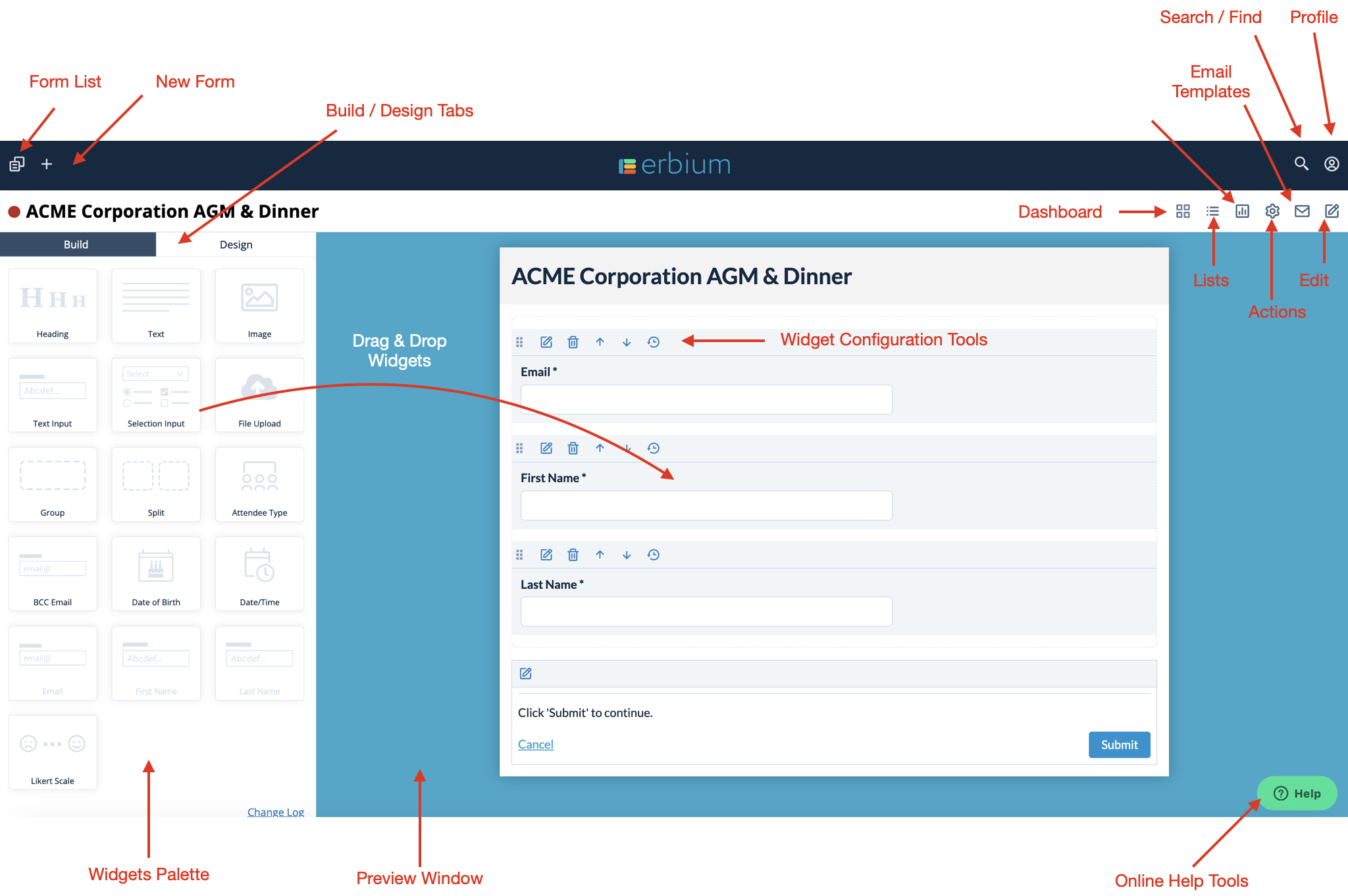
Press "New Form" to create your first form and you will navigate directly to the Build palette ready to configure the questions that should appear on the form. The diagram below provides a quick overview of the page elements and menu items:
Build and Design ...
Now, simply drag and drop widgets onto the preview window while in BUILD mode.
When you're ready to change the look and feel - the DESIGN elements. Click on the DESIGN tab and configure the various design elements such as the header graphics, fonts, colours etc.
More Help...
Here are some links to useful help articles:
Comments
0 comments
Article is closed for comments.