The Selection Input widget is a combination widget that provides choices for a respondent to select from. For example, asking a respondent their favorite color from a list of three choices Red, Green or Blue
Responses can be collected using drop down menus, radio buttons (multiple choice), or check boxes. These are synonymous with HTML Select, Input Type=Radio; Input Type=Checkbox respectively.
In the left menu, the Selection Widget can be identified by this graphic:
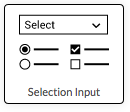
To place a Selection Input widget on a form drag the icon onto the form using your mouse (or finger if using a mobile device)
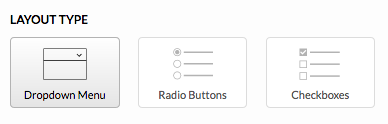
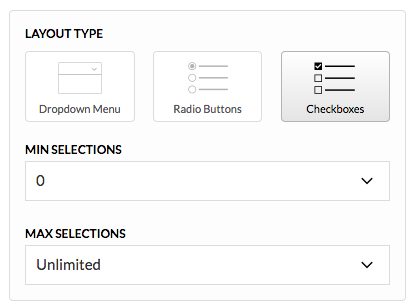
The Selection Input Widget can be configured to appear as one of the three different layouts on the Settings Tab:
Click the edit icon (  ) to configure the widget can be configured in the left configuration panel.
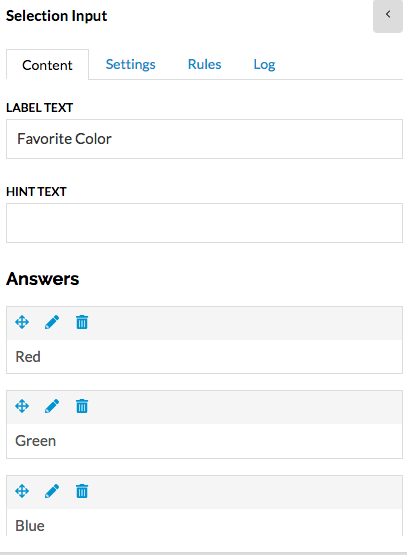
Dropdown Menu Layout
Once the Selection Input Widget in the Dropdown Menu layout has been placed on a form it appears as below in the form editor - including formatting controls:
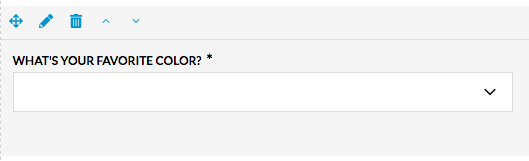
On a live form the Selection Input Widget in the Dropdown Menu layout appears as below:

Radio Buttons Layout
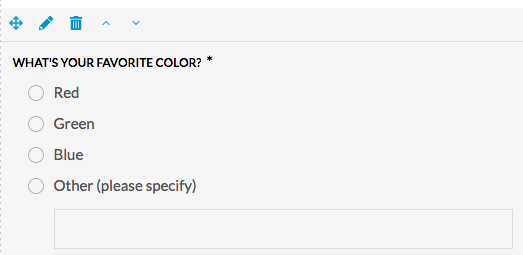
Once the Selection Input Widget in the Radio Buttons layout has been placed on a form it appears as below in the form editor:
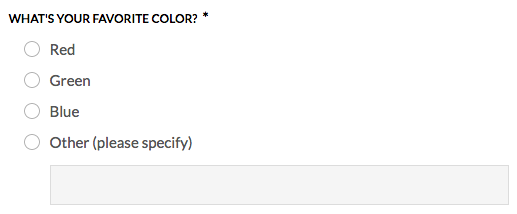
On a live form the Selection Input Widget in the Radio Buttons layout appears as below:
Checkboxes Layout
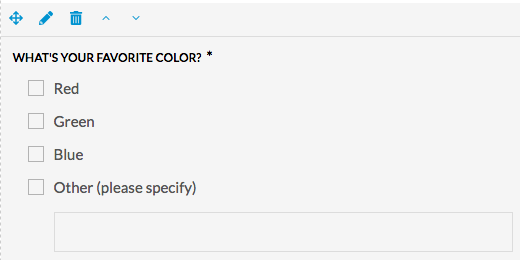
Once the Selection Input Widget in the Checkboxes layout has been placed on a form it appears as below in the form editor:
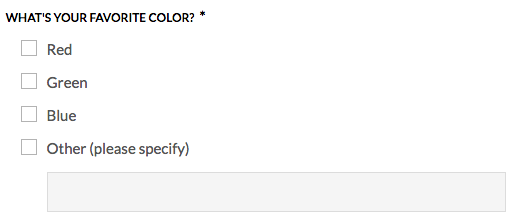
On a live form the Selection Input Widget in the Checkboxes layout appears as below:
Selection Input Widget in the Checkboxes layout can be configured with minimum and / or maximum selection limits. These limits are useful to make sure a respondent selects at least a certain number of checkboxes, or no more than a certain number, or exactly a certain number.
- To mandate a minimum number of selections - set the Min Selections to a number greater than zero and leave the Max Selection unlimited.
- To mandate a maximum number of selections - set the Max selections to a number representing your desired maximum.
- To mandate an exact number of selections set both the Min Selections and Max Selections to the same number that represents your desired exact number.
These limits can be set from the Settings tab.
Comments
0 comments
Article is closed for comments.