A web site provides an opportunity to provide additional detailed information in a traditional menu driven, web-site format.
Initiate a Web Site to support your Form
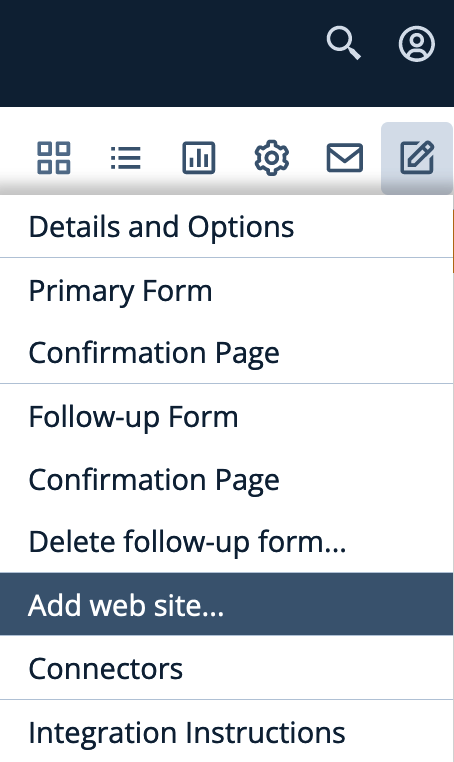
- Click on the Edit icon in the Menu and select "Add a Web Site"
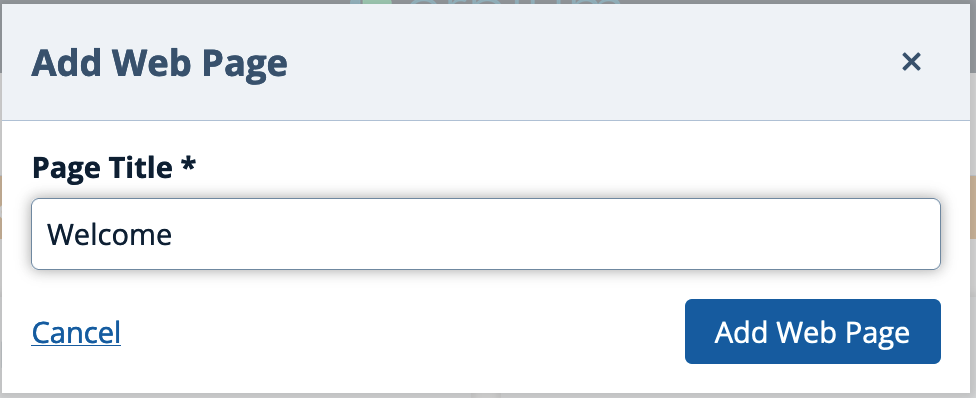
- Provide the name for the first page of the Web Site, let's call it "Welcome"
- The first page has now been added to the Web Site menu:
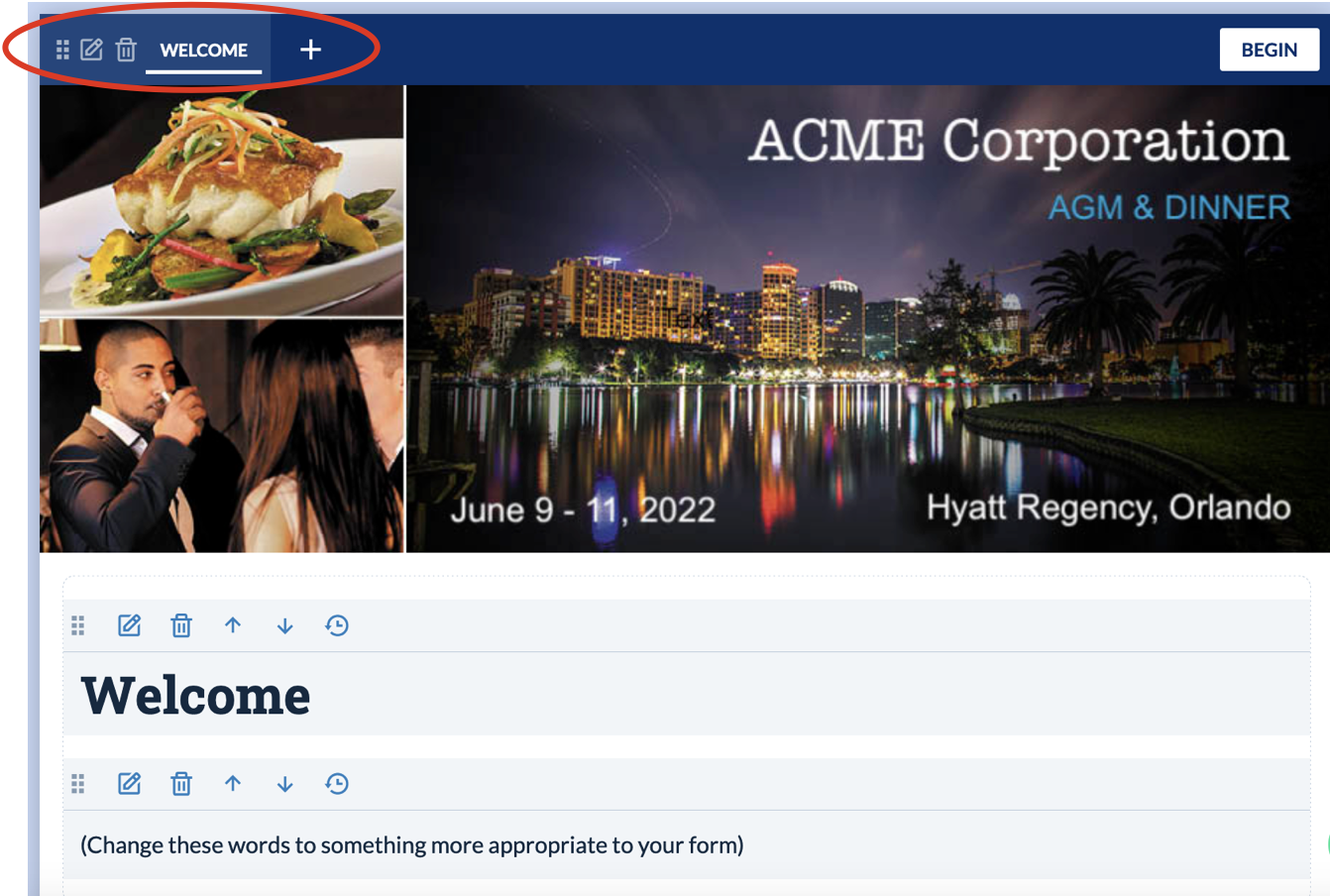
- Build the page by dragging, dropping and configuring the widgets in the left menu.
Add Pages to the Web Site
- Click the "+" sign on the Web Site menu bar:

- Define the name of the new page. For example, "Contacts":

- Build the page as desired
Change the order of the Web Site Pages
- Select the Web Site page that you want to move. This will highlight the available option icons (Move, Edit, Delete)
- Drag and Drop the Web Site page by 'grabbing' the menu item using the 'move' icon

- Place the page in the desired position
Changing the Web Site menu Design
- Select the "Design" palette in the left menu
- Select the "Menu" tab
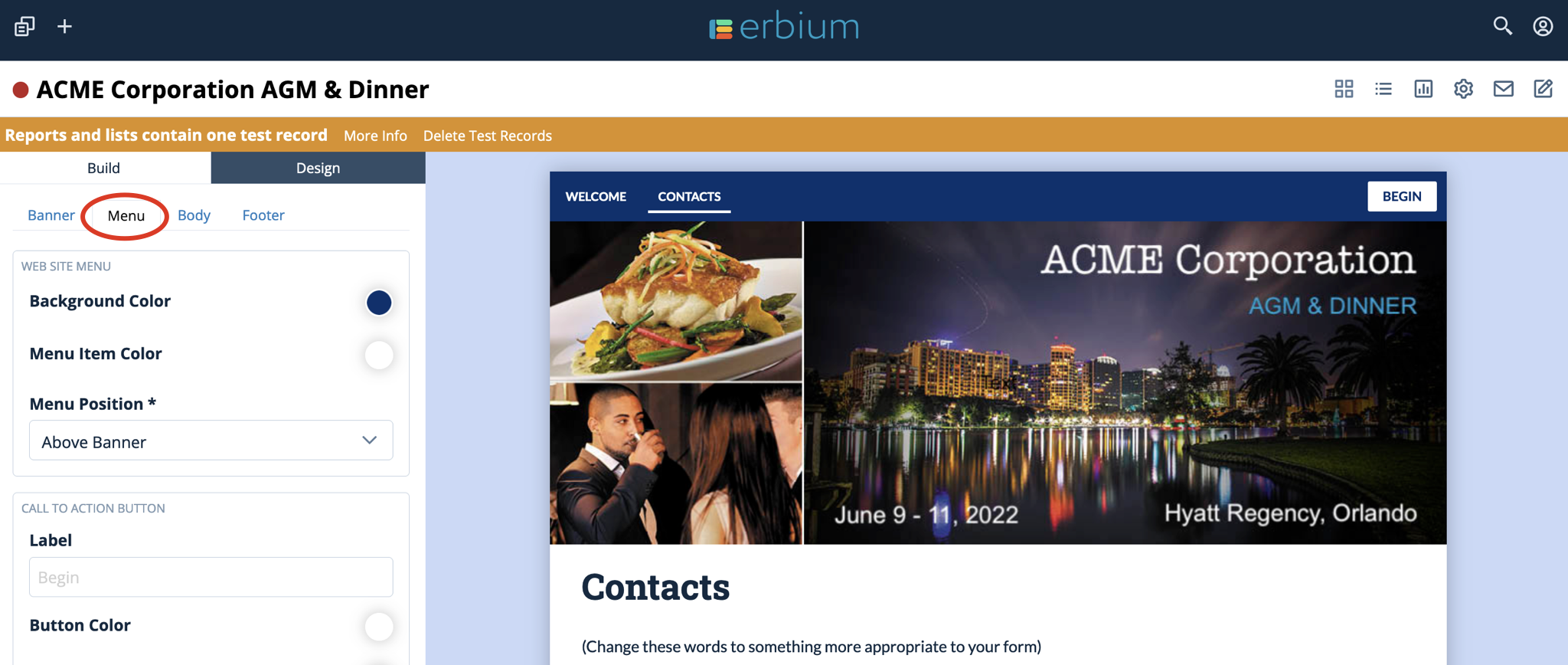
- Adjust the design elements to your preference. Changes will be reflected in the right panel.
Comments
0 comments
Article is closed for comments.