Search for anything such as a person, a form, and event within the ERBIUM platform using this simple method.
1. Activate the search window
The search window can be activated in two ways:
a) pressing the letter 'f' (for find!) on your keyboard. (Note that this will only trigger the find feature if you are not already using your keyboard for editing.)

b) clicking on the magnifying glass icon in the menu at the top tight of the screen.

2. Enter the search criteria
Enter your criteria into the search window:
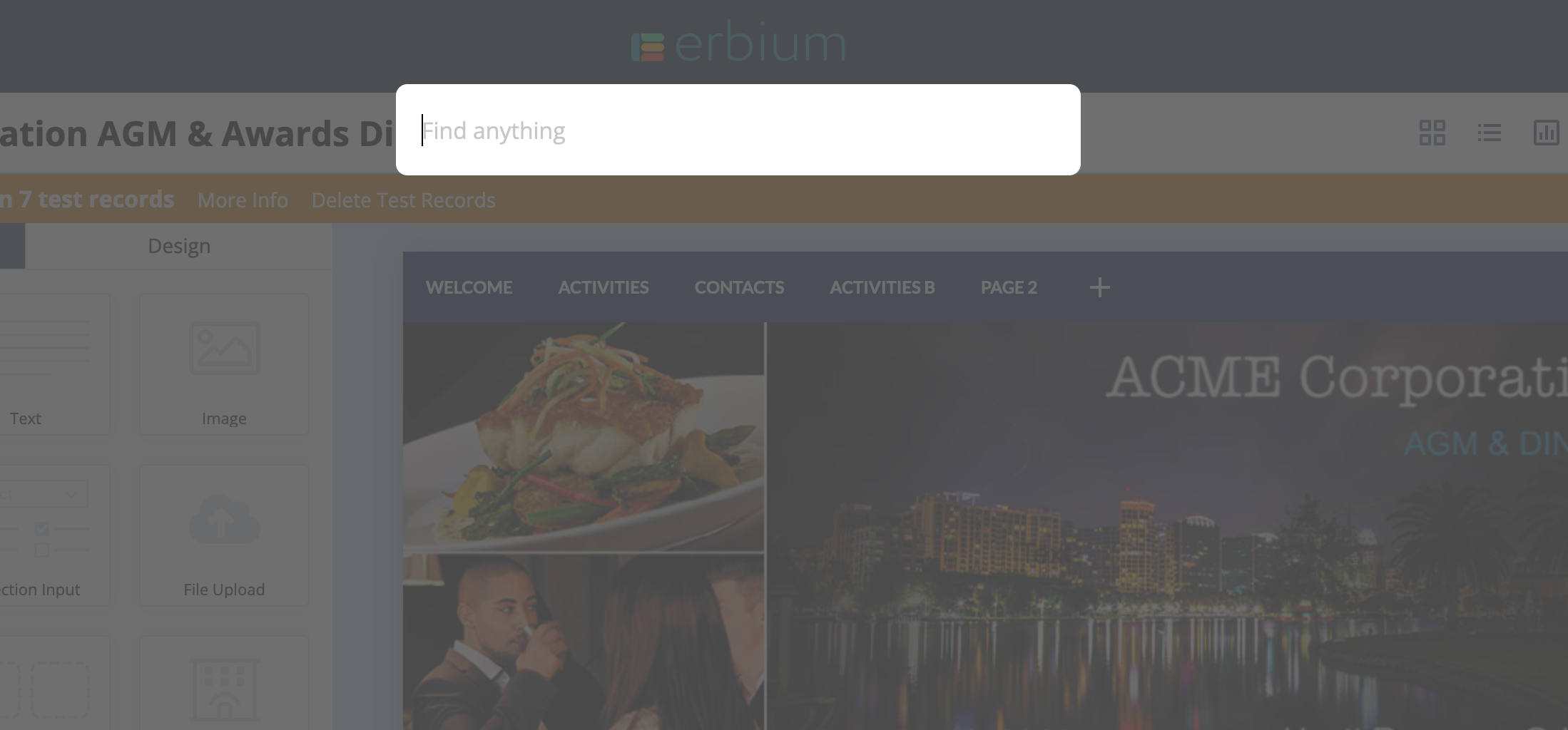
3. Review search results
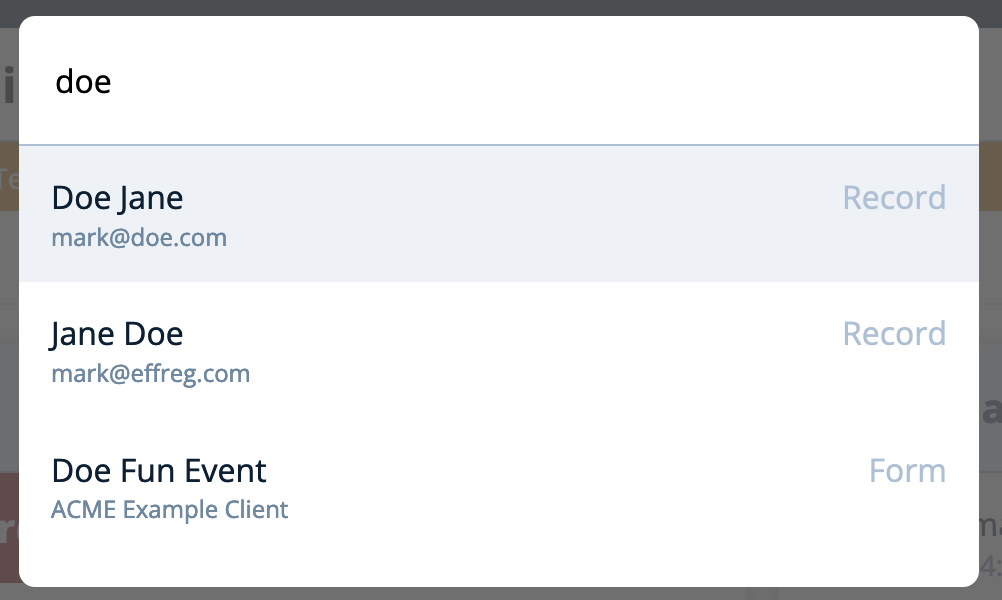
Entering search criteria - for example "Doe" - will indicate 'Records' and/or 'Forms' that match the criteria as illustrated below:
4. Navigate to the desired result
Move up and down the list using your keyboard UP and DOWN keys.
Navigate to a result by:
- clicking directly on a result,
- or use keyboard UP and DOWN keys and pressing ENTER when the desired record is highlighted
NOTE:
Searching when within a particular event will produce records from within that event plus other forms that match the criteria.
Searching outside a particular event will produce list only forms that match the criteria.
Comments
0 comments
Article is closed for comments.