Rules are a powerful tool that enable forms or emails to present content based upon defined criteria. If the criteria is met the content appears to the person completing the form, otherwise it remains hidden.
Rules can be applied to most types of widgets including text, images, questions, agendas, accommodation.
For example, you may ask a person their favourite sport from choices of hockey, baseball, tennis or soccer.
You might also wish to ask a follow-on question, perhaps asking their favourite baseball team - that is displayed only if baseball is selected. Of course you do not want that follow on question to be visible otherwise.
Let's walk through this example.
First, add both questions to the form:
- Add the original question "What is your favourite sport?"
In this example we have added four choices in a radio button format - Ice Hockey - Baseball - Soccer and Tennis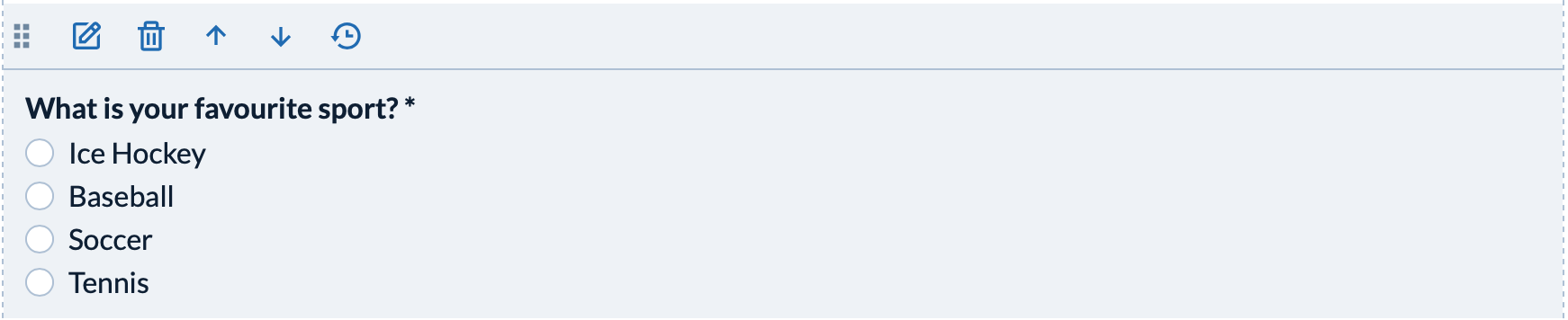
- Add the follow-on question "What is your favourite baseball team?"
In this example we have added a few baseball teams for example purposes only - not the entire league!
Currently the follow-on question will appear under any scenario so we want to add a rule to set criteria to only display the question if the respondent selects 'Baseball' as their favourite sport.
Now, set the rule criteria on the follow-on question
- Click on the edit pencil on the follow-on question
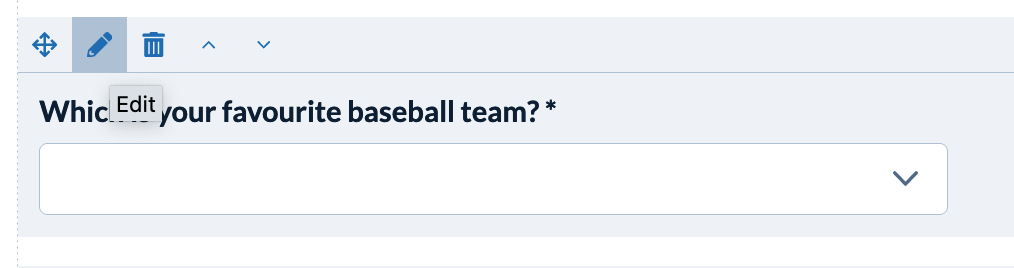
- In the edit panel select the Rules tab
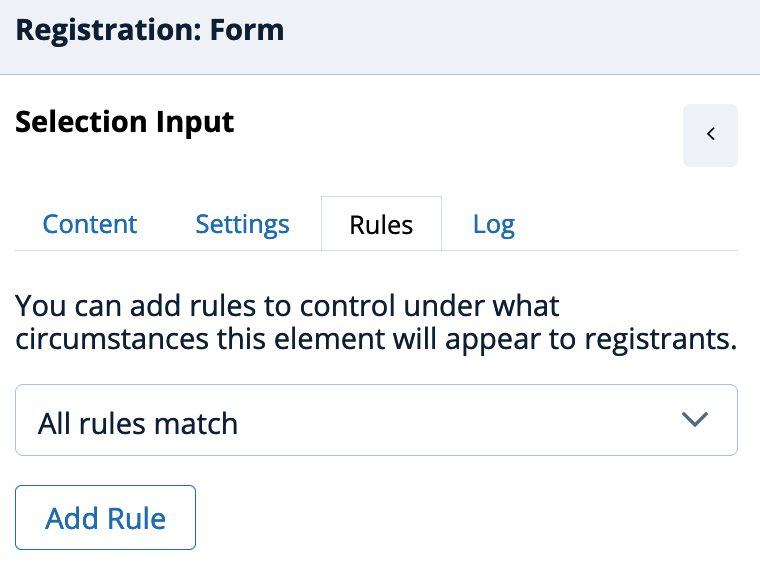
On the Rules tab you are prompted to select "All rules match" or "Any rules match".
What's the difference?
'All rules match' requires all the criteria to be met before the content is displayed. This is equivalent to an AND condition. If any of the individual criteria are not met the content will not be displayed.
'Any rule matches' requires at least one of the criteria to be met in order for the content to be displayed. This is equivalent to an OR condition.
These choices are only important if you are creating a complex rule involving multiple criteria.
Since we are only applying criteria for one condition it doesn't matter so we will leave the selection as "All rules match". - Click 'Add a Rule' to define the criteria under which we want to display the follow-on question.
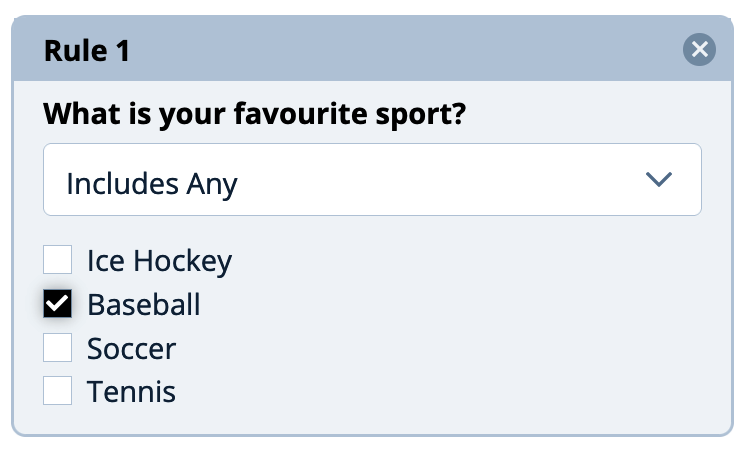
- Select the question that will help determine whether the follow-on question is displayed. In this example "What is your favourite sport?"
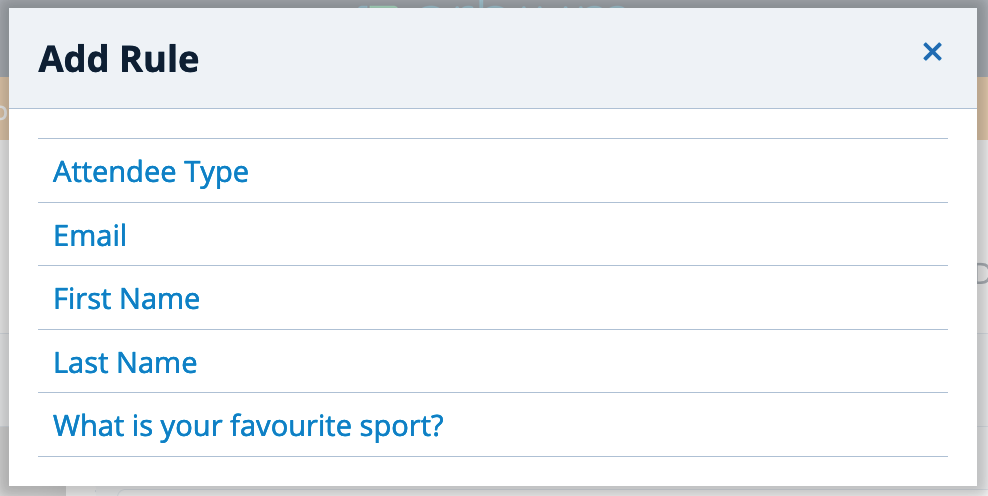
- Define the answers that will prompt the follow-on question. in this example, selecting 'Baseball' will prompt the follow-on question "Which is your favourite baseball team?" to be displayed.
- Close the left panel and you will see the icon on the follow-on widget indicating a rule applies to this widget.

Related help Topics
Use rules and groups to create more advanced dynamic content
Comments
0 comments
Article is closed for comments.