Once additional languages have been enabled in the Details and Options you will be able to provide both design and content for the registration experience in the specified languages.
Updating Widget Content
Once additional languages are enabled all visible content can be translated in one or both of two ways:
- Updating the widgets configuration directly
- Using a translation spreadsheet
Updating Widget Configuration Directly
The Content tab for widgets contains the text information that is displayed to users. This includes items such as labels, placeholder, hints etc
The input boxes for these items are identified using ISO language codes (e.g. English - EN; French = FR etc)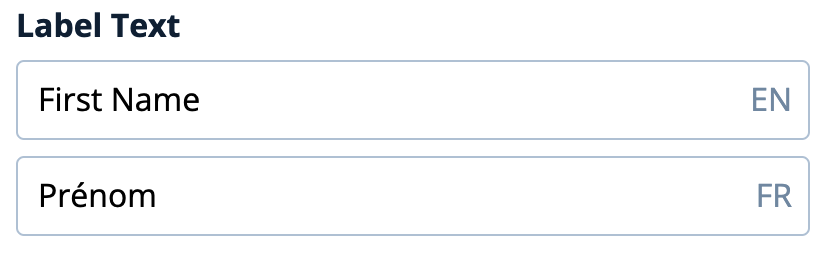
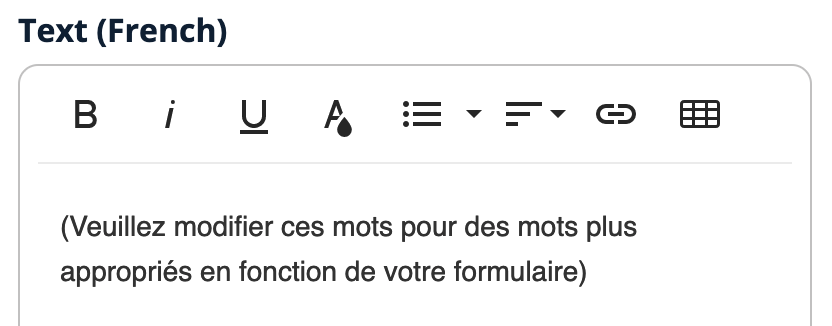
Sometimes the Content tab contains larger text areas that support more extensive text and formatting. These are often labelled with the 'long form' language within the label as illustrated below
Using a Translation Spreadsheet
Once your event is configured to your satisfaction in the base language, translation can be performed 'in bulk' using a translation spreadsheet. The translation spreadsheet is exported and provided to a translator. Then, once translated, the same spreadsheet can be imported to the event.
Follow these steps to export the translation spreadsheet:
- On the Details and Options page under the Setup menu ensure the appropriate languages are toggled on.
- Click the 'Export Translation Sheet' button and select the appropriate 'target' language from the drop down choices and click the 'Export' button. This will download to your computer a formatted spreadsheet specific to the language selected.
- Provide the spreadsheet to a translator asking them to translate the content indicated in Column B and enter translations into Column C.
In the example below Column B contains the source language and Column C contains the translation to the target language (in this case French)
COLUMN A
page.p-UV07j4gw.titleCOLUMN B
ConfirmationCOLUMN C
Confirmationpage.p-UV07j4gw.subject Confirmation of Registration Confirmation d'inscription widget.w-QXI7fT4g2q.text Thank you for registering for the big event Merci de votre inscription.
IMPORTANT NOTE: Do not change the content of any cells other than column C.
Follow these steps to import the translation spreadsheet:
- On the Details and Options page under the Setup menu, click the 'Import Translation Sheet' button
- Select the appropriate translation spreadsheet from your computer to import.
Updating Design Content
Similarly to widget content, design content will be identified with ISO language codes and/or long form language labels
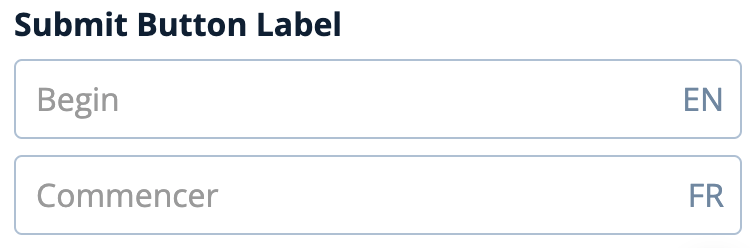
An example of multilingual configuration of cal to action button labels
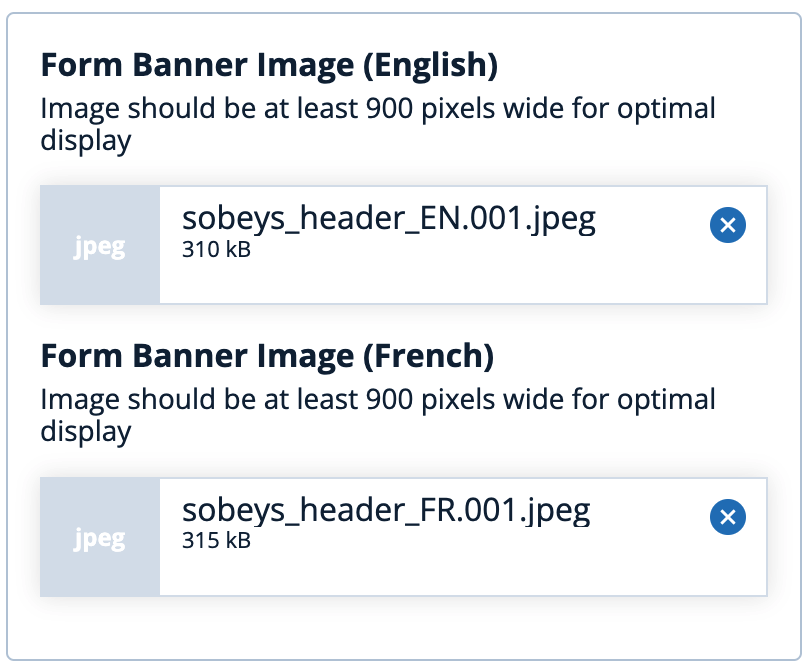
An example of a multilingual banner image upload
Comments
0 comments
Article is closed for comments.