Once additional languages have been enabled in the Details and Options you will be able to create and preview email templates in the additional languages.
Create localized design for email templates
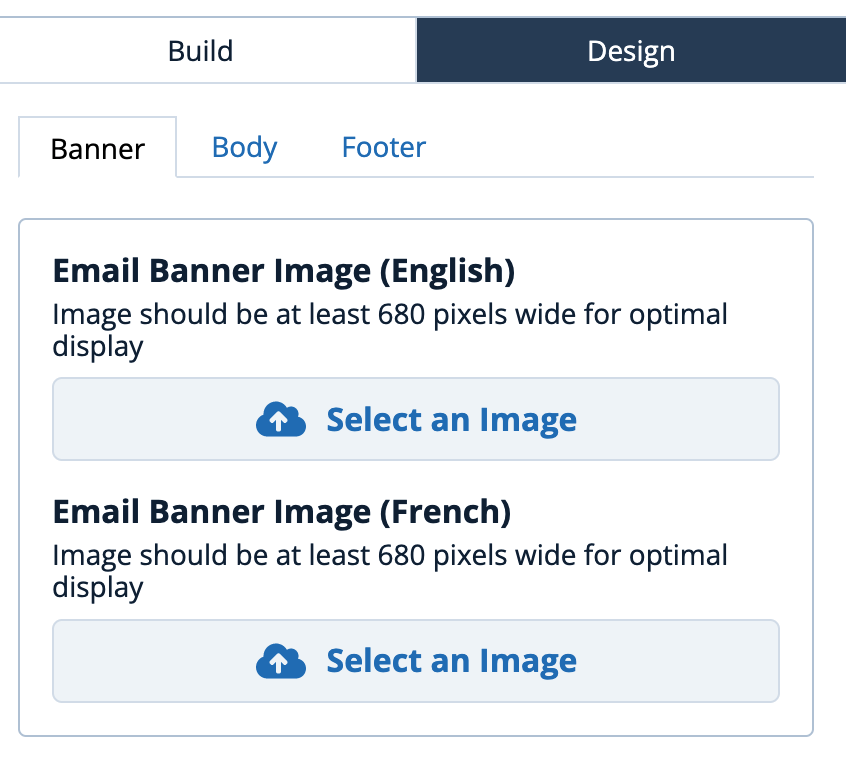
Selecting the Design tab of any email template will enable you to configure various design elements in the language configured for the event. The example below illustrates the Banner image for the email.
Create localized content for the email header
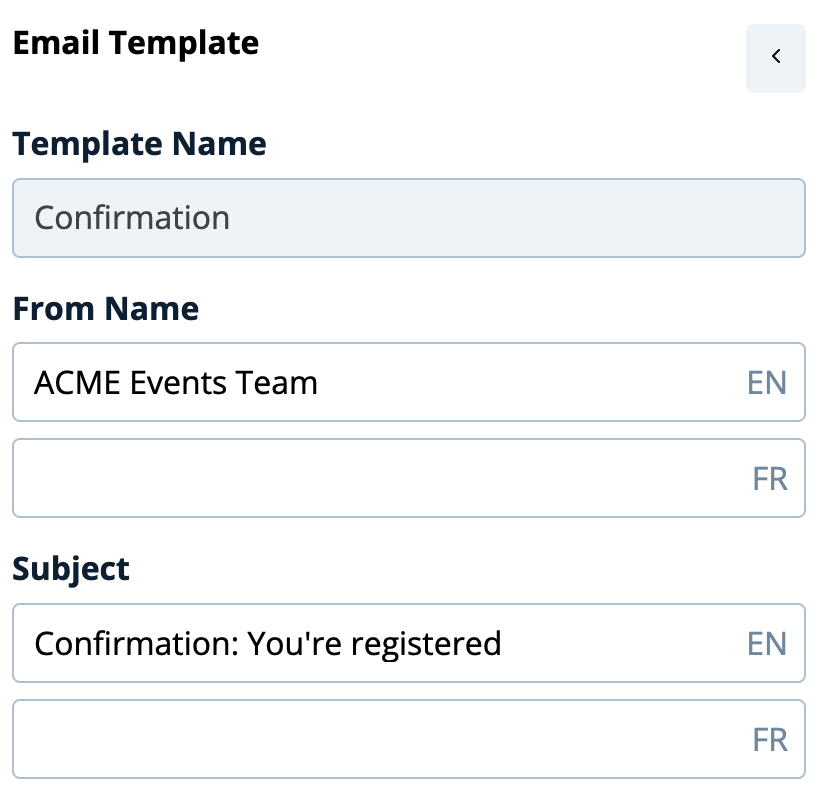
By selecting the edit icon in the email header you will be able to configure the header information such as From Name, Subject etc
Create localized content for each widget on the email template
By editing each widget you will be able to configure the Content in multiple languages
Preview the email template in a selected language
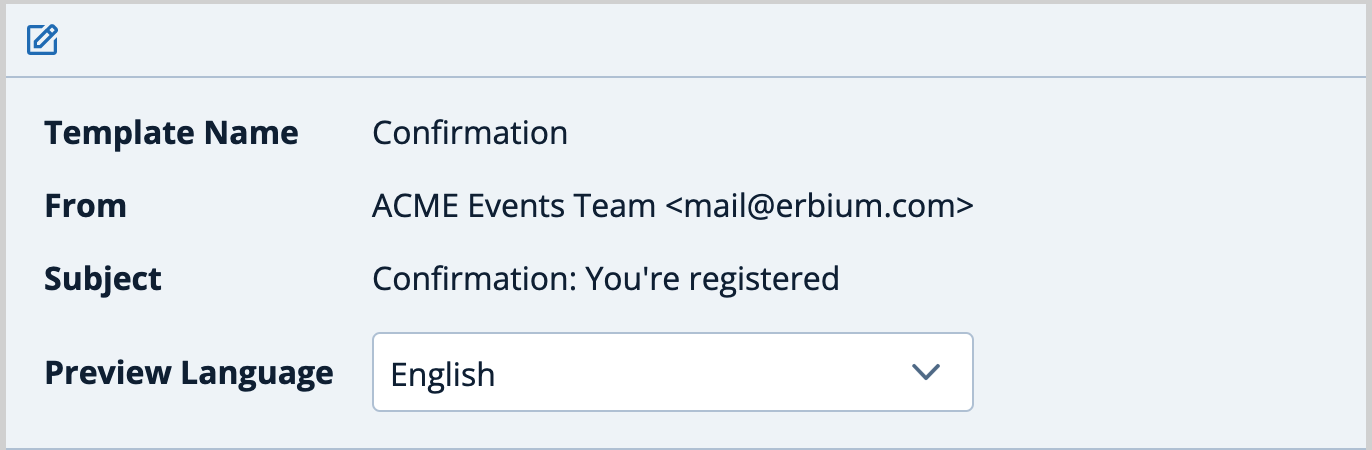
During configuration you can toggle the language of the template by selecting the "Preview Language" from the header panel. This will display the template in the language selected.
Comments
0 comments
Article is closed for comments.